Claude + WordPress + MCP: how to actually connect them (a 2026 guide)

Last week a friend running a 40-site agency asked me a question I have heard about a hundred times since November: “How do I get Claude to actually do work inside my WordPress sites, not just write copy outside them?”
He had tried three plugins. Two of them lit his test site on fire. The third worked but only on staging. He wanted the version where Claude opens a real client site, reads what is there, and ships the change. Without a junior dev sitting between them.
This guide is the answer I gave him. It is what works, what does not, and what to install today if you want Claude (or Cursor, or Claude Code) inside a live WordPress environment by lunch.
Key takeaways
- MCP (Model Context Protocol) is the open standard from Anthropic that lets AI clients like Claude Desktop, Claude Code, Cursor, and ChatGPT speak to WordPress directly.
- There are three real ways to connect Claude to WordPress in 2026: the official Automattic MCP Adapter, paid commercial plugins like AI Engine, and SproutOS (the open-source workflow layer this guide installs).
- The 5-minute install is two plugins: WordPress Abilities API (the open spec) plus SproutOS (the workflow layer), both free.
- Once connected, Claude can run 152 abilities on your site, from “create a draft post” to “audit SEO” to “refresh 50 outdated articles in one prompt.”
- The Safe Mode toggle restricts every connected AI client to read-only access globally, which is the setting most agencies should start with.
What is MCP, and why does it matter for WordPress?
MCP (Model Context Protocol) is an open standard, released by Anthropic in November 2024, that lets an AI client talk to an external system through a shared language of tools, resources, and prompts. WordPress site plus MCP server equals an AI that has hands inside the site, not just eyes on the screenshot.
The MCP team describes it as “a USB-C port for AI applications” (source: modelcontextprotocol.io). One protocol on one side. Many clients on the other. No bespoke integration per AI client.
For WordPress, that matters because every previous attempt to connect AI to WordPress looked like a chatbot plugin. AI Engine. WPBot. Royal MCP. They are useful, but the connection lived inside one plugin. MCP flips that: any MCP-compatible AI client (Claude Desktop, Claude Code, Cursor, VS Code, Windsurf, Zed, Cline, Continue) can drive your WordPress site through the same standard.
By May 2026, every major MCP client supports it. The question is not “will my AI client speak MCP.” The question is “what server am I running on my WordPress site, and what is it allowed to do.”
The three real ways to connect Claude to WordPress in 2026
| Option | License | Strength | Weakness | Best for |
|---|---|---|---|---|
| Automattic MCP Adapter | GPL, open source | Official, baked into wp.com strategy | Thin REST API wrapper, generic | Hosts and platforms |
| AI Engine (by Jordy Meow) | GPL, 100K+ installs, 4.9 stars on 835 reviews | Mature, chatbot-first, full feature set, weekly releases | Consumer-shaped, no role choreography | Solo creators, content sites |
| SproutOS | GPL, 152 abilities at v0.1.1 | Agency-shaped, multi-role Capability Profiles, sandbox, Elementor + TPAE + Bricks + WooCommerce integrations | Brand-new, no install base yet | Agencies on live client sites |
A few honest notes on this table before we move on.
The Automattic adapter is the thinnest layer. It exposes WordPress core through the REST API as MCP tools. If you want Claude to do anything outside what the REST API already supports (run a PHP snippet, manage a page builder, write to the filesystem), you need more than the adapter alone.
AI Engine is the most polished. 100K+ active installs, 4.9 stars on 835 reviews. Jordy Meow ships weekly. His pinned positioning paragraph publicly contrasts AI Engine’s MCP against the Automattic Adapter, calling the Adapter “essentially a thin layer on top of the REST API.” He is not wrong. If your job is chatbots plus content gen plus embeddings on a single content site, AI Engine is the right pick.
SproutOS is the new entrant, shipped by my team at POSIMYTH on May 25, 2026 (v0.1.1). It is open source, GPL, free. The wedge is the agency-shaped workflow layer on top: Capability Profiles (the multi-role primitive), the Sandbox (safe PHP execution), and pre-built abilities for Elementor, TPAE, Bricks, and WooCommerce. If you are running 20+ client sites, that shape will matter to you.
The point is, you have a choice. The rest of this guide installs SproutOS because that is what I build and what I can show you end-to-end with real screenshots. Pick a different server if your job is different.
The 5-minute install (Docker walkthrough)
Prerequisites:
- WordPress 6.9 or higher
- PHP 8.0 or higher
- Node.js 18 or higher (on the machine running your AI client, not on the WordPress server)
- HTTPS in production (HTTP works for local Docker)
I ran the install below in a fresh WordPress 7.0 container locally. Total time, including the screenshots in this post, was under 6 minutes.
Step 1: Install the WordPress Abilities API plugin
This is the open spec that lets WordPress plugins expose “abilities” (typed, secure, callable units of work) to any MCP-compatible client. It is not specific to SproutOS. It is the substrate every modern WordPress AI plugin will build on.
wp plugin install https://github.com/WordPress/abilities-api/archive/refs/heads/trunk.zip --activateOr via wp-admin: Plugins > Add New > Upload Plugin, drop in the ZIP from github.com/WordPress/abilities-api, activate.
Step 2: Install SproutOS
wp plugin install https://github.com/posimyth/sprout-os/archive/refs/heads/main.zip --activateGitHub repo for direct download. v0.1.1 is the current release as of writing.
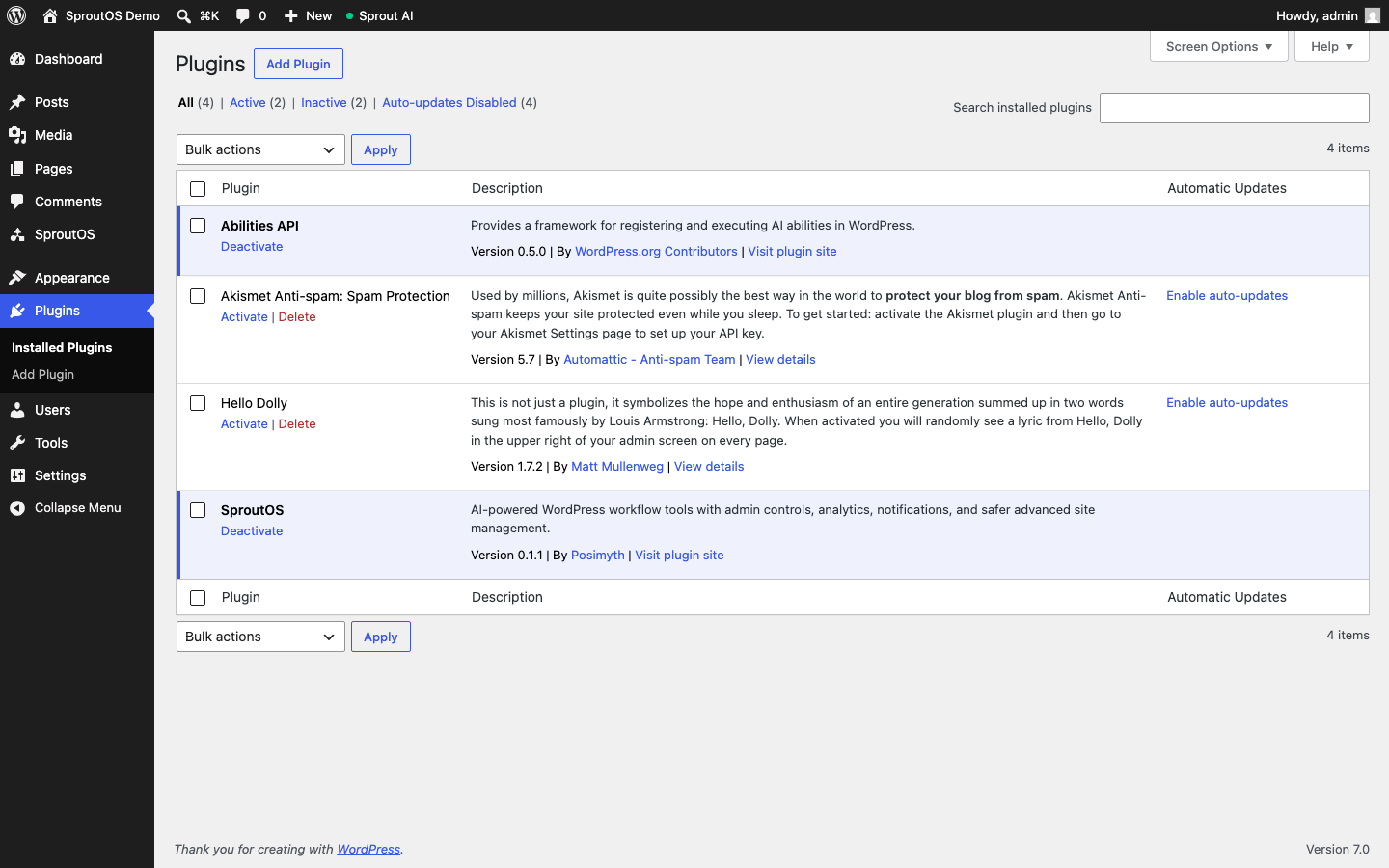
After activation you should see both plugins active under Plugins > Installed Plugins:
Step 3: Open SproutOS > MCP Connect
The plugin adds a top-level “SproutOS” admin menu item. Click in, and you land on the MCP Connect tab. This is where the magic happens.
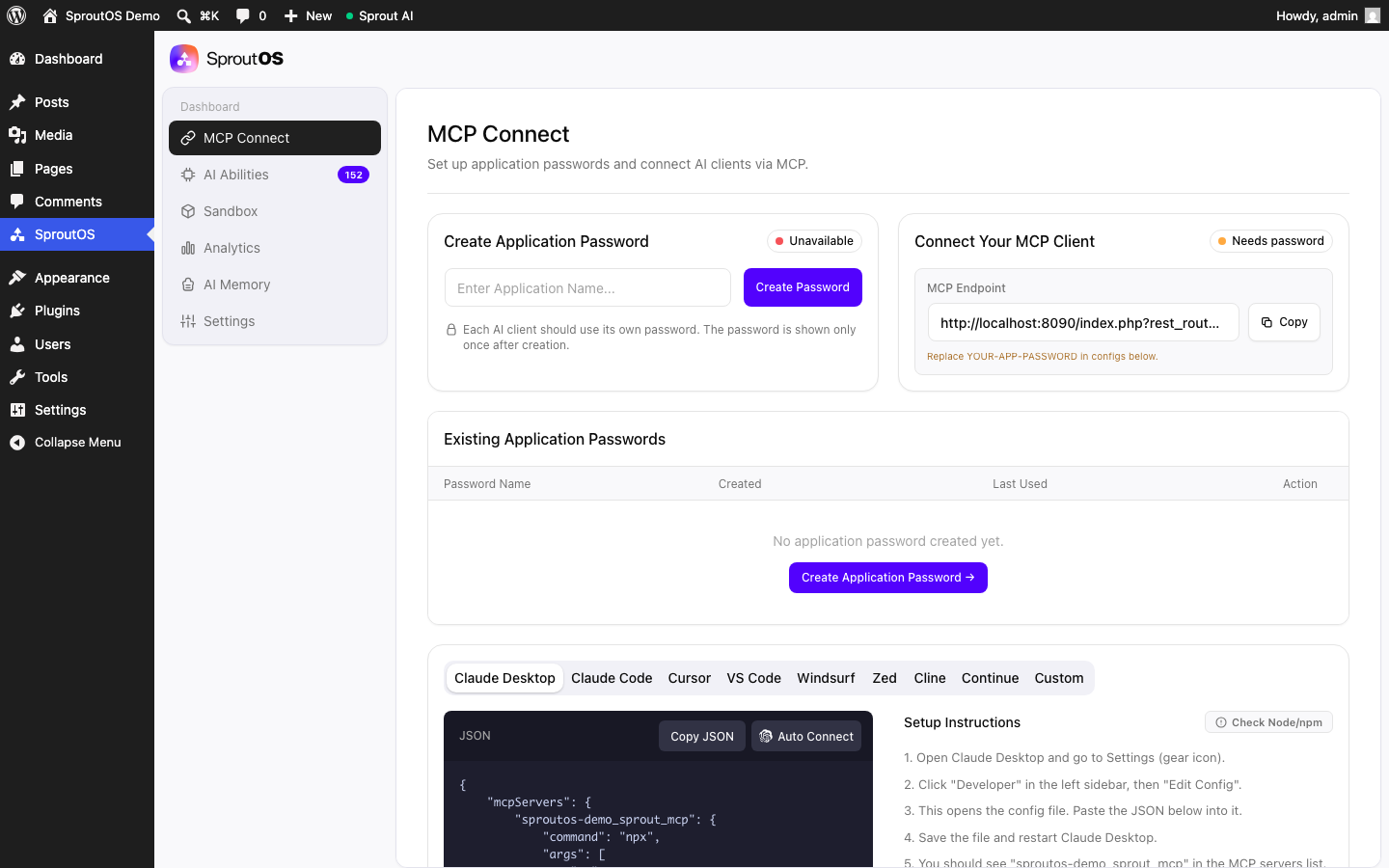
Three things to notice in that screenshot:
- MCP Endpoint at the top right. That is the URL your AI client will hit. Each AI client gets its own application password, never share one across clients.
- Multi-client tabs at the bottom. Pick yours and copy the JSON. Claude Desktop, Claude Code, Cursor, VS Code, Windsurf, Zed, Cline, Continue, or a Custom client are all generated for you. No reverse-engineering required.
- Auto Connect button. On Claude Desktop, this triggers a system prompt that adds the config to your Claude config file directly. One click instead of finding
~/Library/Application Support/Claude/claude_desktop_config.jsonby hand.
Step 4: Create an Application Password
Enter a name (something like “claude-desktop-laptop”), click Create Password. WordPress shows the password once, never again. Copy it.
Step 5: Paste config into Claude Desktop
Click the “Copy JSON” button under your AI client tab. The JSON looks like this for Claude Desktop:
{
  "mcpServers": {
    "sproutos-demo_sprout_mcp": {
      "command": "npx",
      "args": [
        "-y",
        "@automattic/mcp-wordpress-remote@latest"
      ],
      "env": {
        "WP_API_URL": "https://your-site.com/wp-json/mcp/sprout",
        "WP_API_USERNAME": "admin",
        "WP_API_PASSWORD": "YOUR-APP-PASSWORD-HERE"
      }
    }
  }
}
Open Claude Desktop > Settings (gear) > Developer > Edit Config. Paste the JSON. Save. Restart Claude Desktop. Done.
Step 6: Verify the connection
Open Claude Desktop. In the MCP servers list, you should see sproutos-demo_sprout_mcp (or whatever you named yours) with a green dot. Type “What can you do on this WordPress site?” and Claude will enumerate the abilities it sees.
What can Claude actually do once connected?
This is the screenshot that surprised my agency-owner friend the most:
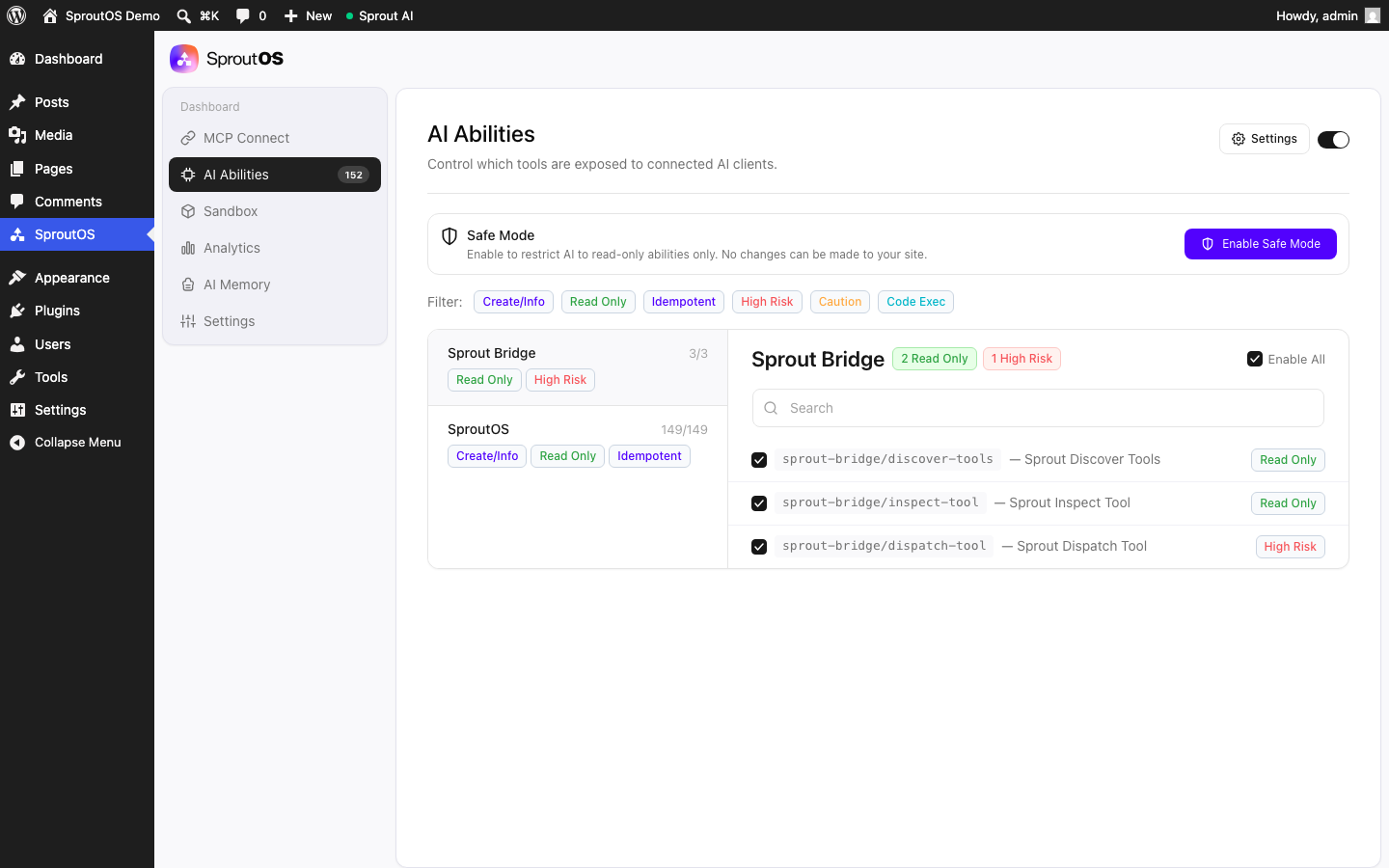
152 abilities, every one with a risk label. Read Only. Idempotent. High Risk. Code Exec. You can disable any single ability, or you can flip the Safe Mode toggle in the top-right and force every AI client connected to this site into read-only mode globally.
The 10 ability categories shipped in v0.1.1:
- WordPress Core (posts, pages, users, comments, taxonomies, options)
- File Operations (read, write, list, search inside wp-content)
- Theme Management (templates, styles, blocks, patterns)
- PHP Execution and Sandbox (run snippets safely, isolated from the live site)
- Elementor (read and modify widgets, sections, templates)
- The Plus Addons (TPAE) (POSIMYTH’s own Elementor extension, deep integration)
- Builder / Cross-Builder (Gutenberg block-level operations across builders)
- WooCommerce (products, orders, customers, inventory, reports)
- Bricks Builder (Bricks-native operations for Bricks-first agencies)
- Bridge Tools (discovery plus dispatch primitives that let Claude inspect what is available before acting)
If you have ever asked “can Claude actually deploy a real WordPress change without me clicking around for 20 minutes,” the answer is in that list. Yes, for the categories above. With the safety controls described next.
The safety story (read this before you point Claude at a client site)
Three layers, in order of how often you will use them:
1. Safe Mode toggle. Top right of the AI Abilities tab. Flip it on, and every connected AI client is restricted to Read Only abilities globally. Claude can audit, recommend, screenshot, query. It cannot create, update, delete, or run code. Most agencies should default to this on production until they have run their first 10 sessions.
2. Per-ability risk labels. Every ability is tagged Read Only, Idempotent, Create/Info, Caution, High Risk, or Code Exec. You can disable any single ability without touching the others. Want Claude to read posts but never delete one? Disable wp_delete_post. Want to allow content writes but never PHP execution? Disable everything tagged Code Exec.
3. The Sandbox. SproutOS ships a Sandbox tab for PHP execution. When Claude runs PHP, it runs against a sandboxed copy of your site state, not the live database. You inspect the result, then explicitly promote the change to live. This is the difference between “Claude broke my client’s checkout page” and “Claude proposed a checkout patch, I read it, I approved it.”
None of this is on by default. You decide what Claude can touch. The plugin gives you the dials.
Connecting from clients other than Claude Desktop
Claude Desktop is the most common entry point, but the same install works for every major MCP client. The MCP Connect tab has a dedicated config tab for each one. The pattern is identical:
- Claude Code: paste the config into your project’s
.mcp.jsonor runclaude mcp addwith the values - Cursor: paste into
~/.cursor/mcp.json - VS Code (with Copilot Chat): paste into
.vscode/mcp.jsonin your project - Windsurf, Zed, Cline, Continue: their respective config files, all generated for you in the SproutOS UI
If you are an agency working in Cursor or Claude Code instead of Claude Desktop, you do not lose anything. Same 152 abilities, same Safe Mode, same Capability Profiles.
The 3 most common setup failures (and the fix)
Failure 1: “WordPress could not establish a secure connection to WordPress.org”
Cause: your Docker container’s outbound DNS or HTTPS is mis-configured. The plugin still installs, just install it directly from the GitHub ZIP URL using wp plugin install <url>. This was the exact failure mode I hit on my Docker stack while building this guide. Both plugins installed fine despite the warning.
Failure 2: “No tool output found” or Claude says it cannot see the server
Cause: you skipped the application password step, or you used your wp-admin password instead. Application passwords are different from your login. Generate one specifically for Claude under SproutOS > MCP Connect.
Failure 3: Claude Desktop says “Server failed to start”
Cause: 90% of the time, this is Node.js. Claude Desktop is calling npx, which needs Node 18+ on the machine running Claude Desktop (not on the WordPress server). Run node -v locally. If it is missing or below 18, install from nodejs.org. Restart Claude Desktop. The server starts.
Watch a live walkthrough
If you want to see an end-to-end Claude + WordPress + MCP setup walked through by someone outside POSIMYTH, Brad Williams at WebDevStudios published a live setup video that has 7.5K+ views as of May 2026.
His walkthrough uses the Automattic adapter, which is the official reference implementation. The setup pattern is identical to the SproutOS pattern above. SproutOS just adds the workflow layer on top of the same protocol.
Beyond install: 5 Capability Profiles worth trying first
Once Claude is connected, the question shifts from “can I do this” to “what should I do first.” Here are the five I would point a new agency at:
1. Bulk JSON-LD schema for WooCommerce products. “Claude, audit my product catalog for missing schema. Generate JSON-LD for any product missing it. Show me each one before publishing.” Real agency time saved on a 200-product catalog: 6 hours down to 20 minutes.
2. SEO audit. “Pull all blog posts that ranked between position 4 and 15 in GSC last 30 days. List the top 5 by click potential. For each, identify what is missing vs the top-ranking competitor page.” This is a 90-minute manual job that becomes a 4-minute prompt.
3. Content refresh. “Refresh these 5 blog post URLs. Update stats older than 2024, tighten meta title, expand thin H2s, add a Key Takeaways block. Show me each diff. Do not publish until I approve.”
4. WooCommerce inventory check. “Show me products with stock below 10 units, sales velocity over 5 per week, and no reorder set up. List by urgency.”
5. Multi-site management. Run all of the above across 20+ sites without leaving Claude Desktop. This is the slot Capability Profiles fill: define one workflow, run it across sites with per-site policy.
If you want a full walkthrough of each Capability Profile with example prompts, I will publish that as a separate post in the next two weeks. For now, the install above gets you to the point where you can run any of these.
FAQ
Is this safe to use on a live production WordPress site?
With Safe Mode enabled, yes. Without Safe Mode, only if you understand which abilities are enabled and which AI client has the application password. I would not run High Risk plus Code Exec enabled on a client’s production site until you have done 20+ sessions in Safe Mode first and understand the rhythm.
Does it work with Claude Code, not just Claude Desktop?
Yes. The MCP Connect tab has a Claude Code tab that generates the right .mcp.json config. Claude Code lets you script multi-step workflows on top, which is where Capability Profiles really compound.
Can I use this with Cursor / Windsurf / VS Code?
Yes, all of the above. The MCP Connect tab has a dedicated config tab for each MCP-compatible client. The 152 abilities are identical across clients.
How is this different from the official Automattic MCP Adapter?
The Automattic adapter is the thinnest possible layer: REST API plus MCP transport. SproutOS sits on top of the same Abilities API spec but ships 152 pre-built abilities, a Safe Mode toggle, per-ability risk labeling, a Sandbox for PHP execution, and pre-built integrations for Elementor, TPAE, Bricks, and WooCommerce. The adapter is great if you want to build your own. SproutOS is for if you want the workflow stack already built.
How is this different from AI Engine?
AI Engine is chatbot-first and consumer-shaped. 100K+ installs, weekly releases, free plus Pro tiers. If your job is “put a smart chatbot on my content site,” install AI Engine. SproutOS is workflow-first and agency-shaped. If your job is “run multi-step ops across 20+ client sites,” install SproutOS. Both are GPL, both can run on the same WordPress install, both will be relevant for different teams.
Is it really free?
Yes. GPL-2.0-or-later, source on GitHub, no Pro tier, no per-site fee, no AGPL contagion clause. The model is Bricks-style: free OSS plugin, premium SaaS layer on top later for teams that want hosted Capability Profiles and analytics across sites. The OSS plugin stays free.
Where to go next
The repo has the latest release ZIP, the changelog, the open issues. Star it if this guide saved you a Saturday. File an issue if anything in the install above broke on your stack and I will fix the guide.
If you are an agency running 20+ live client sites and you want a private review of which Capability Profiles to deploy first, the POSIMYTH team takes a small number of those calls per month. The application form is on sproutos.com.
Next post in this series (Friday): the six reasons your Claude MCP connection keeps failing on WordPress, and the fix for each. Built from the exact thread on r/ProWordPress titled “Claude not able to use wordpress mcp plugin, why?” that surfaced 4 days ago and has not been answered well anywhere.