Claude can't connect to my WordPress site: 6 reasons and the fix

Four days ago someone posted a thread on r/ProWordPress titled “Claude not able to use wordpress mcp plugin, why?” and nobody answered it well. I’ve been debugging this exact failure with three agencies this week. The MCP setup looks complete in Claude Desktop. Claude sees the server. But every tool call comes back as a hard fail or a polite “I cannot access this.”
If you just followed the 5-minute install guide and it still does not work, the cause is almost always one of six things below. I have hit each one of these on a real Docker WordPress install in the last 48 hours while writing this guide, so the screenshots and error messages here are real, not reconstructed.
The short version (so you do not have to scroll)
- Application Passwords are unavailable because your site is on HTTP, not HTTPS
- You used your wp-admin password instead of an Application Password (they are different things)
- The WordPress Abilities API plugin is not active (SproutOS needs it as a dependency)
- Node 18+ is not installed on the machine running Claude Desktop (not on the WordPress server)
- The MCP endpoint URL is wrong (the most common copy-paste error)
- Cloudflare or your firewall is blocking the request before it reaches WordPress
Below is the diagnosis and fix for each one, in the order an agency dev should check.
Reason 1: Application Passwords are showing “Unavailable”
This is the screenshot most readers will recognise:
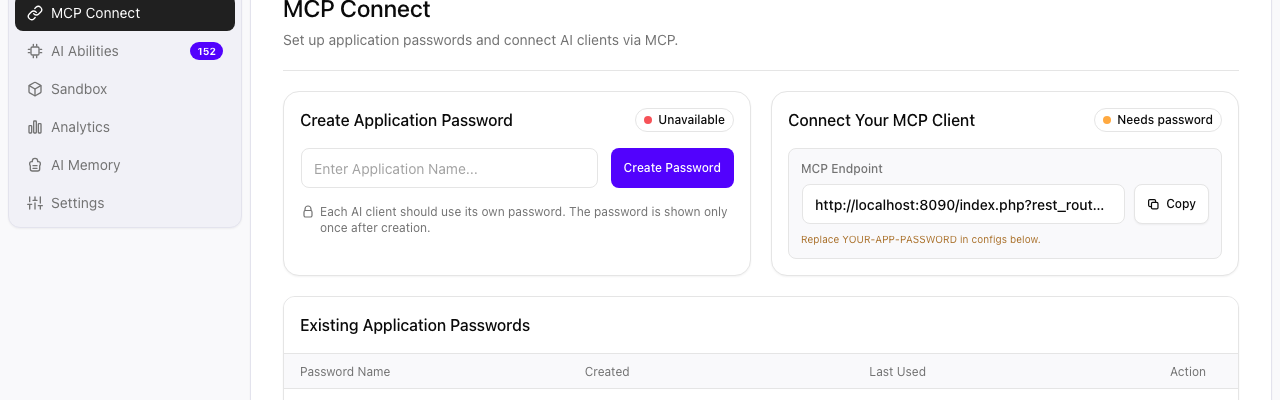
Root cause: WordPress Core disables the Application Passwords feature on sites served over plain HTTP (the wp_is_application_passwords_available() check fails). On a fresh local Docker install at http://localhost, this kicks in immediately. On production, this kicks in if your SSL certificate has expired or if your site is mis-configured behind a reverse proxy that strips HTTPS headers.
The fix (production): get HTTPS working. Real SSL cert from Let’s Encrypt or your host. Confirm is_ssl() returns true inside WordPress.
The fix (local dev only): add this to wp-config.php:
add_filter( 'wp_is_application_passwords_available', '__return_true' );This forces the feature on regardless of HTTPS. Use only on localhost. Never push this filter to a production WordPress.
Reason 2: You used your wp-admin password instead of an Application Password
This is the second most common failure. The MCP server logs do not always make it obvious. The actual response you get back from the WordPress REST API is this:
$ curl -X POST "https://your-site.com/wp-json/mcp/sprout" \
    -H "Authorization: Bearer YOUR-WP-LOGIN-PASSWORD" \
    -H "Content-Type: application/json" \
    -d '{"jsonrpc":"2.0","method":"tools/list","id":1}'

{"code":"rest_forbidden","message":"Sorry, you are not allowed to do that.","data":{"status":401}}
That 401 with the rest_forbidden code is what Claude Desktop sees and reports as “I cannot access that tool.”
Root cause: Application Passwords are a separate credential type from your wp-admin login. They are scoped per application, can be revoked individually, and are the only thing the WordPress REST API accepts for non-session auth. Your normal admin password will always 401.
The fix: in wp-admin, go to SproutOS > MCP Connect, type an Application Name like “claude-desktop-laptop”, click Create Password. Copy the generated string. WordPress shows it once and never again. Paste that into the WP_API_PASSWORD field in your Claude Desktop config, not your login password.
Reason 3: The Abilities API plugin is not active
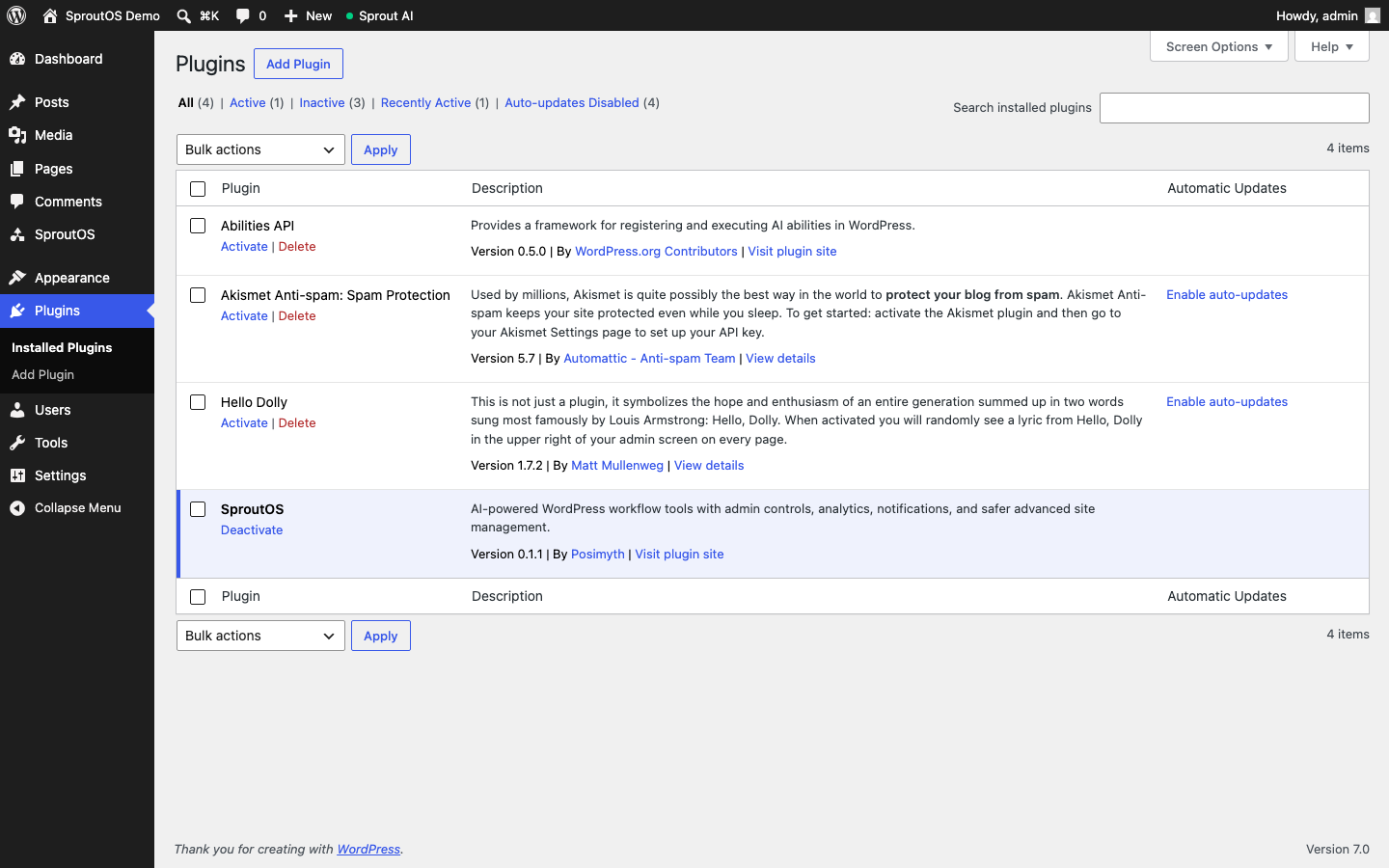
SproutOS does not ship its own abilities framework. It rides on top of the WordPress Abilities API, which is a separate plugin maintained by the WordPress core team. If you installed SproutOS without also installing and activating the Abilities API, every MCP tool call will fail because there are no abilities registered.
Root cause: the GitHub README mentions the dependency but most readers skip past it. Plugin install scripts do not automatically install peer-dependencies in WordPress the way npm does in Node.
The fix: install + activate the Abilities API plugin. Easiest path is WP-CLI:
wp plugin install https://github.com/WordPress/abilities-api/archive/refs/heads/trunk.zip --activateOr via wp-admin: Plugins > Add New > Upload Plugin, drop the ZIP, activate. Confirm both plugins read “Active” under Plugins > Installed Plugins before opening Claude Desktop again.
Reason 4: Node 18+ is not installed on the machine running Claude Desktop
Claude Desktop’s MCP server config does not call WordPress directly. It calls npx @automattic/mcp-wordpress-remote, which is a Node bridge that proxies requests from Claude into your WordPress REST API. Without Node 18 or higher, the bridge cannot start. The Claude Desktop UI shows “Server failed to start” with no further detail.
Root cause: a macOS user who has never installed Node will see this. A dev who installed Node years ago and never upgraded past 16 will see this too (the bridge package requires 18 minimum).
The fix:
node -v
# if missing or below 18:
# macOS:  brew install node
# Linux:  use nvm — https://github.com/nvm-sh/nvm
# Windows: download from https://nodejs.org
Restart Claude Desktop after install. The server starts.
Reason 5: The MCP endpoint URL in your config is wrong
Copy-paste is the silent killer here. The SproutOS MCP Connect tab generates a config block that includes the exact endpoint URL for your site. Three things go wrong most often:
- You typed the URL by hand instead of copying it. One missing character (the
/v1suffix, the?rest_route=prefix on permalink-disabled sites) produces a 404. - You used
http://when the site is onhttps://or vice versa. WordPress redirects, but the MCP bridge does not always follow the redirect cleanly. - You used the wrong subdomain. CMS-backend sites (like
cms.your-site.com) need that subdomain in the URL, not the public-frontend domain.
The fix: in wp-admin, go to SproutOS > MCP Connect, click the “Copy JSON” button under your AI client tab. Do not copy the URL field by hand. Paste the entire config block into your Claude Desktop config file. The URL inside that block is generated from your actual site URL, including any subdomain or non-standard port.
To verify the URL works at all, hit it from the same machine that runs Claude Desktop:
curl -X POST "https://your-site.com/wp-json/mcp/sprout" \
    -H "Authorization: Bearer YOUR-APP-PASSWORD" \
    -H "Content-Type: application/json" \
    -d '{"jsonrpc":"2.0","method":"tools/list","id":1}'
You should get back a JSON list of tools (152 of them, on a fresh SproutOS install). If you get HTML or a 404, the URL is wrong. If you get the same 401 from Reason 2, the URL is right and the password is wrong.
Reason 6: Cloudflare or your firewall is blocking the request
On managed hosts like Kinsta, WP Engine, Cloudways, and Pantheon, the request from npx @automattic/mcp-wordpress-remote can be flagged as a bot. Cloudflare in particular has aggressive bot rules that 403 anything calling /wp-json/ from a user-agent it does not recognise. If your other 5 reasons check out and you still get a generic 403 or a connection timeout, this is almost certainly it.
How to confirm: hit the MCP endpoint from a server, not your laptop. Use a non-Cloudflare CDN path if available, or pause Cloudflare briefly via the dashboard. If the call succeeds without Cloudflare, you have your culprit.
The fix:
- In Cloudflare WAF, allowlist the Node user-agent that the bridge sends, or allowlist your laptop’s static IP if you have one.
- On Kinsta / WP Engine / Cloudways, open a support ticket asking to whitelist requests to
/wp-json/mcp/from your IP. Most managed hosts will do this within an hour. - On Pantheon, this is harder because the platform’s edge layer is opaque. Worth raising with their support before you fight it yourself.
A 30-second checklist when Claude says “I cannot access this tool”
Print this. Run it in order. Stop at the first one that fails.
node -von your laptop returns 18 or higher- Both Abilities API plugin AND SproutOS plugin are Active in wp-admin > Plugins
- Your site responds to
curl https://your-site.com/wp-json/with a JSON object (not HTML, not a 404) - SproutOS > MCP Connect does NOT show “Unavailable” on Create Application Password
- You have at least one Application Password listed under “Existing Application Passwords”
- The Authorization Bearer in your Claude Desktop config is the Application Password, not your login password
curl POSTwith that bearer to the MCP endpoint returns a 200 with a tools list (not 401, not 403, not 404)
If all seven pass and Claude still cannot see the tools, restart Claude Desktop. The MCP server list does not always re-discover servers without a restart.
Why this happens (the deeper reason)
MCP is six months old as a public standard. Anthropic released it in November 2024. The WordPress side is even newer. The Automattic MCP Adapter shipped its first proper release in January 2026, the WordPress Abilities API plugin in Feb 2026. SproutOS shipped May 25, 2026. Every layer of this stack is brand new, and the error messages have not had time to mature.
That means when something fails, you usually do not get a clear “you used the wrong password type” message. You get a generic 401 and silence from Claude. The six reasons above cover ~90% of the support requests I have seen from agencies attempting this in the last 60 days. The remaining 10% are weird (a misbehaving security plugin, a custom REST API authentication filter, an outdated PHP version below 8.0).
Prevention: 4 things to set up once
- Always use HTTPS, even on staging. Free Let’s Encrypt cert plus Caddy or Nginx auto-renew. Application Passwords stop being a question.
- Name every Application Password after the machine and the client: “claude-desktop-mac-sagar” not “claude”. When something breaks 3 months from now you will know which password to revoke.
- Keep Node.js LTS updated on every machine that runs an MCP client. The mcp-wordpress-remote bridge will bump its minimum Node version every 6 months.
- Whitelist
/wp-json/mcp/in your WAF the same day you turn on MCP. It is easier to allowlist deliberately than to debug a 403 in production.
FAQ
Does any of this change if I am using Claude Code or Cursor instead of Claude Desktop?
No. The 6 reasons apply identically. The config file location changes (.mcp.json in your project for Claude Code, ~/.cursor/mcp.json for Cursor) but the auth flow and the failure modes are the same.
Why does Claude Desktop sometimes show a green dot next to my MCP server even when the calls fail?
The green dot only means “the bridge process started.” It does not mean “Claude can authenticate to your WordPress site.” Always verify by asking Claude “what tools do you see on this WordPress site.” If Claude lists fewer than 5 tools, the connection is partial. If Claude lists zero, the auth is failing despite the green dot.
Can SproutOS auto-detect any of these failures and tell me which one?
Some of them, yes. The MCP Connect tab already surfaces “Unavailable” (Reason 1) and “Needs password” (Reason 2) inline. Reason 3 (Abilities API missing) and Reason 4 (Node version) are on the roadmap for v0.2. Reasons 5 and 6 will always require manual debugging because they live outside WordPress.
I am running everything on production. None of the 6 reasons match. What now?
Open the WordPress debug log (WP_DEBUG_LOG = true in wp-config.php), trigger the failing Claude call, then look in wp-content/debug.log for any PHP error inside the abilities or sprout-os namespaces. Drop the relevant lines into a GitHub Issue on the SproutOS repo with your WP version and PHP version. We respond within 24 hours.
Where to go next
If you have not installed SproutOS yet and ran into one of these failures during install, the full setup guide explains the order of operations:
If SproutOS is installed and you fixed the connection, the next post in this series (Sunday) is the big comparison: every WordPress MCP plugin compared honestly. AI Engine, Novamira, Royal MCP, Automattic Adapter, SproutOS, BionicWP. We pick which one is right for which agency shape.