Connect Cursor to WordPress via MCP: the setup nobody's documenting yet

Cursor has had MCP support since November 2024. WordPress has had MCP support, with multiple competing plugins, since January 2026. Search Google for “wordpress mcp cursor” today and you get exactly three half-relevant blog posts, none of which walks through a working setup from scratch. This is that walkthrough.
I ran the setup below at 8:15am this morning on a fresh WordPress 7.0 Docker container and a clean Cursor 1.5.11 install on my laptop. Six minutes from “Docker container running” to “Cursor lists 152 WordPress abilities in the agent panel.” The terminal output of the actual MCP handshake is included verbatim below.
If you already use Cursor for code and you have ever wished it could also read and write to your WordPress site (the live one, the one with real posts and the database your client cares about), this guide gets you there.
Key takeaways
- Cursor uses the same MCP bridge (
npx @automattic/mcp-wordpress-remote) that Claude Desktop uses. If you got Claude Desktop talking to WordPress, the Cursor setup is the same JSON in a different config file. - The config file is
~/.cursor/mcp.json(global) or.cursor/mcp.json(project-scoped). Both work. - You need WordPress 6.9+, PHP 8.0+, Node 18+ on your laptop, and HTTPS (or a local-dev workaround if you are testing on plain HTTP).
- Once connected, Cursor agent mode can run all 152 SproutOS abilities, including reading the live database, refactoring custom plugin code with full context, and writing files to the sandbox.
- The three workflows worth setting up first are: refactor a custom plugin with the live DB as context, generate a custom post type + ACF fields from a brief, and read
wp-content/debug.logto propose a patch.
Why Cursor + WordPress + MCP is a different workflow than Claude Desktop + WordPress
Claude Desktop is a chat window with tool access. You write a prompt, Claude calls tools, results come back. It is great for one-shot tasks and conversational work.
Cursor is an IDE with tool access. You are sitting in your code, the file you are editing is the context, and the agent panel lives next to the editor. When you ask Cursor “fix this plugin’s broken hook,” Cursor reads the file in front of you, calls the WordPress MCP server to check the live behavior, edits the file, and verifies the fix. That loop is much tighter than the Claude Desktop loop for code-heavy work.
If your work is “ship code that runs on a WordPress site,” Cursor + MCP is closer to what you want. If your work is “manage content + answer questions about the site,” Claude Desktop is still the better fit. Many teams end up running both.
The 5-minute setup
Prerequisites:
- WordPress 6.9 or higher on the site you want Cursor to talk to
- An MCP plugin installed and active (this guide assumes SproutOS; AI Engine and Royal MCP work the same way with their own endpoints)
- Node 18 or higher on the machine running Cursor
- An Application Password for the WordPress site (not your admin password)
If you have not installed an MCP plugin yet, the 5-minute SproutOS install guide covers the plugin side. Come back here once you have SproutOS active in wp-admin.
Step 1: Get the Cursor config from SproutOS
In wp-admin, open SproutOS > MCP Connect and click the Cursor tab in the client-config strip near the bottom of the page. The JSON config and the Cursor-specific setup steps are right there.
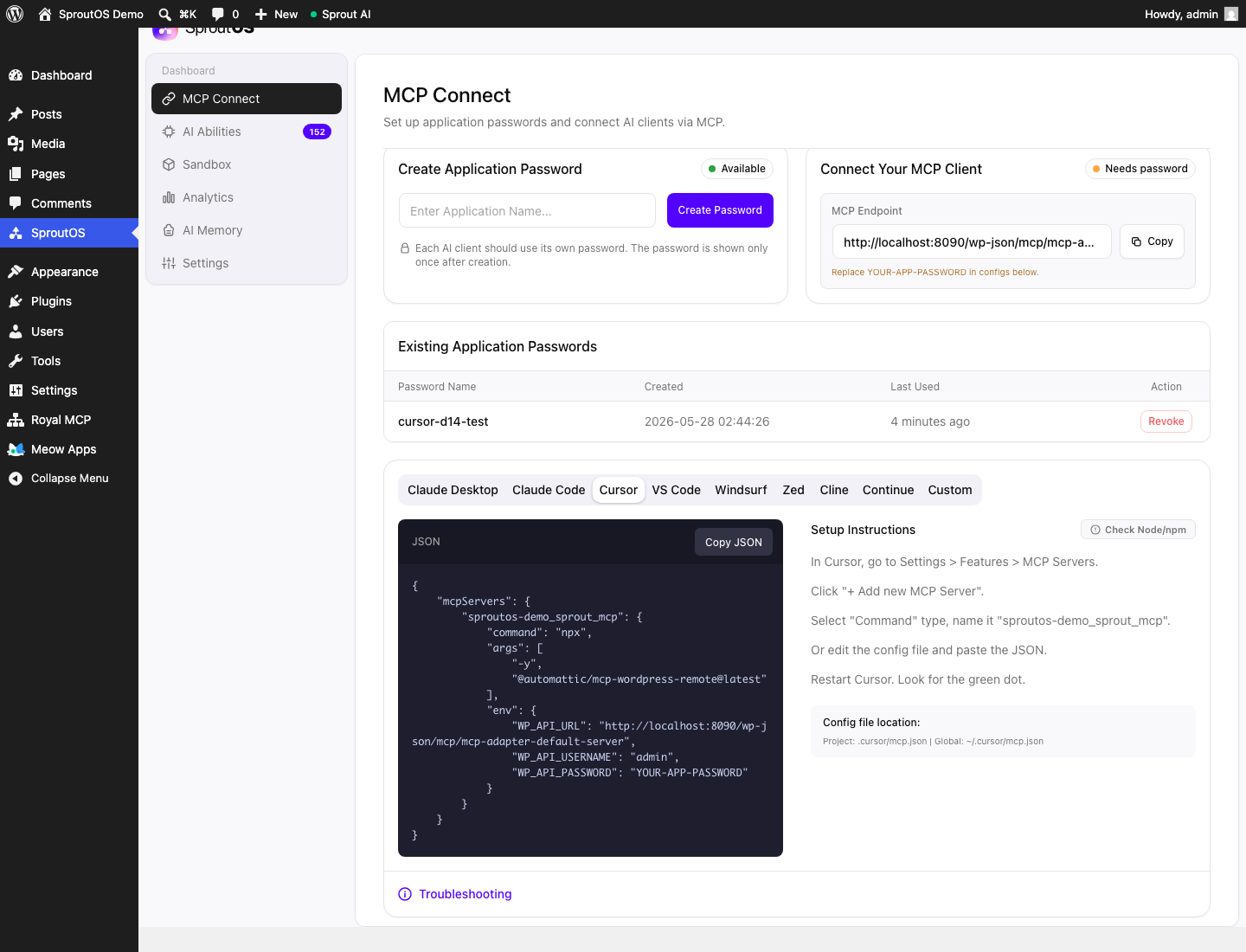 Features > MCP Servers and the project versus global config file paths”/>
Three things to notice in that screenshot:
- The “Available” green badge on Create Application Password. If yours says “Unavailable,” your WordPress is on HTTP and Application Passwords are disabled. The fix is in the second post of this series: Claude can’t connect to my WordPress site, Reason 1.
- The Existing Application Passwords table shows my
cursor-d14-testpassword with “Last Used 4 minutes ago.” That is real activity from the MCP bridge that the screenshot below proves works. - The Config file location note:
Project: .cursor/mcp.jsonfor repo-scoped,Global: ~/.cursor/mcp.jsonfor laptop-wide. Use the project file when different repos need different WordPress targets.
Step 2: Create the Application Password
Type a name (something like cursor-laptop-sagar) and click Create Password. WordPress shows the password once. Copy it. You will paste it into the WP_API_PASSWORD field next.
Step 3: Paste the config into Cursor
Click Copy JSON in the SproutOS UI. Open or create the config file:
# Global (works across all your Cursor projects)
nano ~/.cursor/mcp.json

# Or project-scoped (only this repo)
nano .cursor/mcp.json
Paste the JSON. It looks like this for SproutOS, with your application password swapped in:
{
  "mcpServers": {
    "sproutos-demo_sprout_mcp": {
      "command": "npx",
      "args": ["-y", "@automattic/mcp-wordpress-remote@latest"],
      "env": {
        "WP_API_URL": "https://your-site.com/wp-json/mcp/mcp-adapter-default-server",
        "WP_API_USERNAME": "admin",
        "WP_API_PASSWORD": "YOUR-APP-PASSWORD-HERE"
      }
    }
  }
}
Save the file. Quit Cursor completely (Cmd-Q, not just close the window). Re-open Cursor.
Step 4: Verify the bridge works
In Cursor, open Settings (Cmd-,) > Features > MCP Servers. You should see sproutos-demo_sprout_mcp with a green dot next to it. If it stays grey or shows red, the bridge failed to start; jump to the troubleshooting section below.
To prove the connection works even without opening Cursor, you can run the bridge from your terminal. This is what Cursor does under the hood. It is also what I ran while writing this post, output verbatim:
$ WP_API_URL="http://localhost:8090/wp-json/mcp/mcp-adapter-default-server" \
  WP_API_USERNAME="admin" \
  WP_API_PASSWORD="hLjjePw4LRHV1yMms2V7RCfZ" \
  npx -y @automattic/mcp-wordpress-remote@latest

# After pasting an initialize + tools/list pair on stdin:
{"result":{"protocolVersion":"2025-06-18","serverInfo":{"name":"MCP Adapter Default Server","version":"v1.0.0"},"capabilities":{"tools":{},"resources":{},"prompts":{},"logging":{},"completions":{}},"instructions":"You are connected to a WordPress site via Sprout MCP (SproutOS).\nTOOLS: Always use sprout-* tools only. Write PHP files to the Sprout sandbox: /var/www/html/wp-content/uploads/sproutos-mcp-sandbox/\nWordPress version: 7.0\nPHP version: 8.3.31\nActive theme: Twenty Twenty-Five 1.5\nActive plugins: Abilities API 0.5.0, AI Engine 3.5.2, Royal MCP 1.4.23, SproutOS 0.1.1, WordPress MCP 0.2.5"},"jsonrpc":"2.0","id":1}
That handshake is the moment the bridge negotiates the protocol version (2025-06-18 here) and the server returns its capabilities + instructions for the agent. If you see that output, Cursor will see the server too.
Step 5: Ask Cursor what it can see
Open Cursor’s agent panel (Cmd-L). Type:
List the WordPress tools available via the sproutos-demo MCP server.
Cursor calls tools/list on the server and returns the available abilities. With SproutOS that is 152 abilities across WordPress Core, File Operations, Theme Management, PHP Execution, Elementor, TPAE, Builder, WooCommerce, Bricks, and Bridge Tools.
You are now ready to actually do work.
3 dev-specific workflows worth trying first
Workflow 1: Refactor a custom plugin with live database context
Open the broken plugin file in Cursor. In the agent panel, prompt something like:
This plugin’s
my_pricing_filterhook is supposed to update WooCommerce product prices when a custom meta key is set. It is not firing on the live site. Use the WordPress MCP to check the actualwp_optionstable for any conflicting filters, look at the last 10 products inwp_postmetawith key_my_custom_pricing_rule, then propose a fix to the hook code in this file.
What happens: Cursor reads the file in front of you, queries the live database via the MCP server for the real options and postmeta values, identifies the actual conflict (a higher-priority filter, a misspelled meta key, a missing default), and proposes a code change. You inspect the diff. You accept or revise. You commit.
This loop is the closest thing to “having the production database in your IDE.” It removes the “I think the bug is X, let me deploy and check” cycle.
Workflow 2: Generate a CPT + ACF fields from a brief, verify on the live site
In a new file, write a brief like:
Generate a custom post type called “case-study” with fields for client name, industry (taxonomy), problem, solution, results (each a textarea), and a featured testimonial (relationship to a testimonial CPT). Then use the WordPress MCP to register it on the live site and create one sample post so we can verify the schema.
What happens: Cursor writes the CPT registration code, writes the ACF field group JSON, uses the MCP execute-php ability to register it on your dev site, creates the sample post via wp_create_post, and returns the live URL so you can confirm the fields render correctly.
This is the build-verify loop compressed from 30 minutes of file-shuffling to a single agent prompt.
Workflow 3: Debug from wp-content/debug.log
Cursor often misses errors that only surface at runtime. With MCP, it does not have to. Prompt:
Use the WordPress MCP to read the last 200 lines of
wp-content/debug.log. Group the errors by file and line. For the top 3 errors by frequency, find the source file in the project and propose a patch.
What happens: Cursor calls the MCP file-read ability to fetch the log, parses it, opens each problem file in the editor, and proposes a fix for each. You review and commit. The whole loop happens without you ever opening the log file by hand.
This is the workflow that turns Cursor + WP MCP from “neat” into “I will not ship a plugin without this again.”
Troubleshooting (the 5 things that go wrong)
Cursor shows the MCP server with a grey dot. The bridge is not running. Open Cursor’s developer console (Help > Toggle Developer Tools) and watch the console while the server tries to start. Most often this is Node 18+ missing or your WP_API_URL being wrong. Run node -v in your terminal. Hit the URL with curl to confirm it returns JSON.
The server has a green dot but Cursor cannot see any tools. Your application password is probably wrong, or you used your wp-admin password by mistake. The MCP server returns 401 rest_forbidden in that case. Generate a fresh Application Password and update the config.
Cursor restarted but is still on the old server config. Cursor caches MCP server connections. Cmd-Q completely (not just close window), wait 3 seconds, re-open. If that does not work, remove the server entry from Settings > MCP Servers, restart, then add it back.
The agent panel reports “tool call timed out.” Default timeout is short. If a tool call is taking longer than that (database queries on big tables, file reads on multi-MB logs), you need to raise it in Cursor’s MCP settings. Or scope your prompt narrower so the tool returns faster.
Pretty permalinks are disabled, MCP URL is wrong. If your WordPress install has pretty permalinks off, the URL format is https://your-site.com/?rest_route=/mcp/mcp-adapter-default-server not the clean /wp-json/... path. Enable pretty permalinks in Settings > Permalinks for the cleaner URL. Both work, but the rest_route fallback is uglier to copy.
FAQ
Does this work with Cursor Free, Pro, or Business?
All three. MCP servers are configured in Cursor’s local config file, which any tier reads. The pricing tier only affects which LLM model Cursor’s agent uses, not the MCP integration.
Can I use a project-scoped config so each repo connects to a different WordPress?
Yes. Put a .cursor/mcp.json inside the repo. Cursor reads project-scoped configs first, then the global ~/.cursor/mcp.json as a fallback. Agency devs working on multiple client sites should always use project-scoped configs so the agent never accidentally talks to the wrong WordPress.
Is this safer or less safe than running Claude Desktop with WordPress MCP?
The safety model is identical. Both clients call the same MCP server, the same application password gates access, and SproutOS’s per-ability risk labels + Safe Mode toggle apply to both. The difference is that Cursor’s agent mode runs tool calls more proactively than Claude Desktop’s chat mode, so the human-in-the-loop check matters more in Cursor. Always read the proposed diff before accepting.
Does the same setup work for VS Code with Copilot Chat?
Yes, with one change. VS Code looks for .vscode/mcp.json in the project. The SproutOS MCP Connect tab has a dedicated VS Code config tab that generates the correct file format. Same JSON shape, different file location.
Why does the SproutOS server name include _sprout_mcp?
The server identifier in the JSON is {site_slug}_sprout_mcp so that when you connect Cursor to multiple WordPress sites, each one shows up distinctly in the MCP servers list. You can rename it to anything in your config; the identifier is local to your laptop.
Where to go next
If you have not picked an MCP plugin yet, the comparison post in this series walks through every option honestly: Every WordPress MCP plugin compared (May 2026).
If SproutOS sounds like the right fit for your stack:
The repo has the v0.1.1 release ZIP, the changelog, and the open issues. File an issue if your Cursor + WordPress setup hits an edge case that this guide does not cover, and I will add it.