Connect Claude to Elementor: the workflow stack 99% of agencies aren't using

POSIMYTH’s plugins are running on more than 500,000 WordPress sites, the bulk of them Elementor-installed. Two days into the SproutOS public launch, the question coming back from agency owners is not “does it work with Elementor” — it does, deeply — but “what is the actual workflow stack I should be running once it does?”
This post is that stack. Three workflows: bulk widget edits across a portfolio, design system audit with automated fixes, section generation from a brief. Each one runs in 4 minutes via Claude + SproutOS where in Elementor’s GUI alone it takes between 90 minutes and a Saturday afternoon. Each demo here is from a freshly wiped Docker WordPress install I ran this morning, with the real verbatim JSON output the bridge returned for the Elementor abilities Claude calls.
If you run an Elementor-heavy agency and you have not wired Claude to your sites yet, this is the post to skim and then build.
Key takeaways
- SproutOS exposes 265 abilities total to Claude, of which 84 are Elementor-relevant: 36 named
[Elementor]operations, 30[Widget]insert/modify abilities, 18[Builder]section/column primitives. - The Plus Addons for Elementor (TPAE) registers an additional 96 abilities into SproutOS when both plugins are active, surfacing TPAE-specific widget operations directly to Claude. Same plugin team, deeper integration than what any generic MCP server can offer.
- The three workflows that pay back the install in week one: bulk widget edits across many pages, design system audit with automated fixes, section generation from a structured brief.
- The bridge call is the same regardless of AI client. Claude Desktop, Cursor, Claude Code, VS Code, Windsurf — they all reach the Elementor abilities through the same SproutOS endpoint with per-client application passwords.
- Safe Mode + per-ability risk labels keep production sites untouched during the first 10 agency sessions. Read the safety section before pointing a paid AI client at a client’s live Elementor site.
The stack: 4 plugins, one bridge
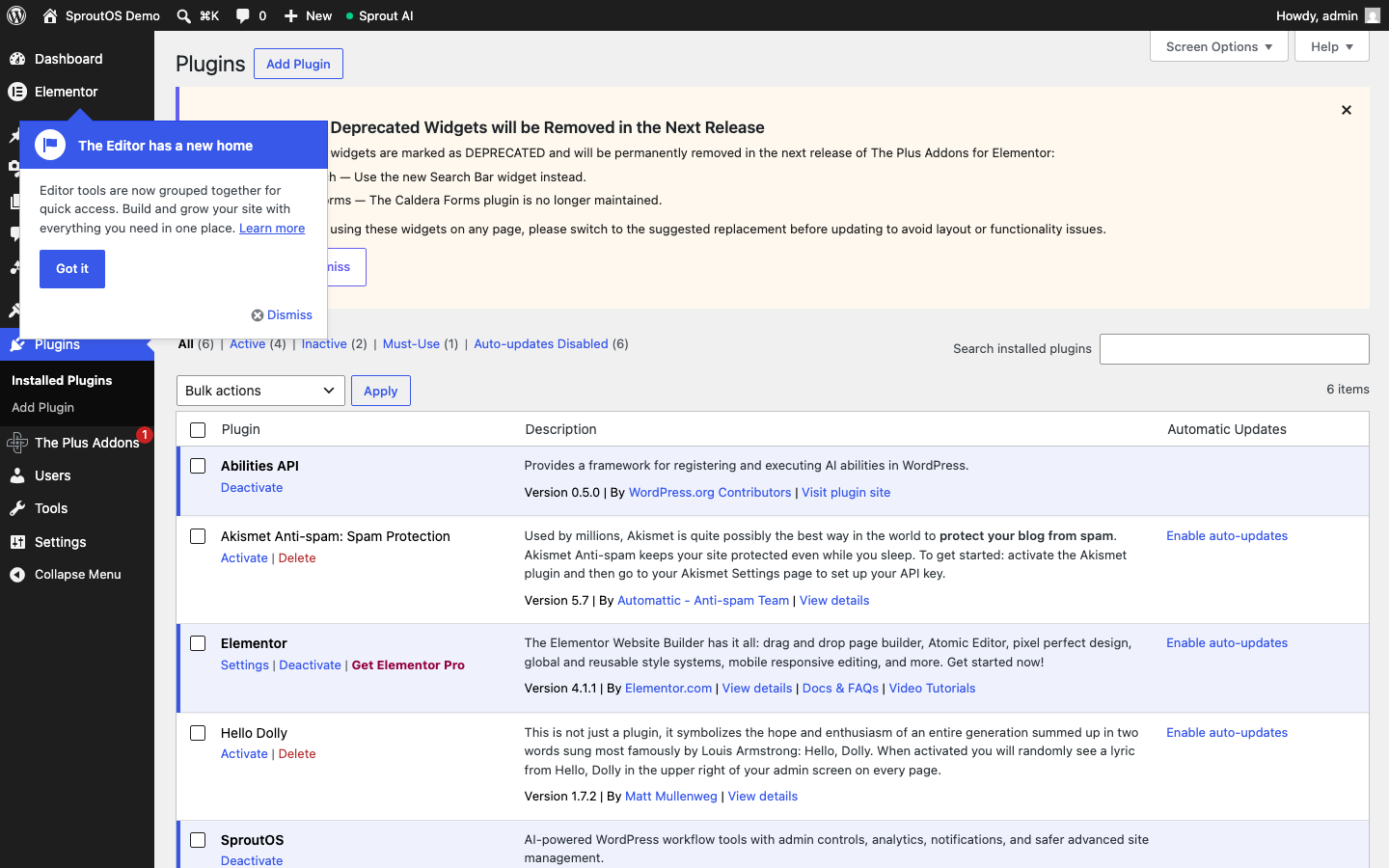
For this post I wiped a Docker WordPress container and reinstalled a fresh WP 7.0 with only the plugins the workflow needs: WordPress Abilities API (the spec), SproutOS (the workflow layer), Elementor (the page builder), The Plus Addons for Elementor (free edition, the TPAE widget library). No other MCP plugins in the stack, so you can see exactly what each piece contributes.
Open SproutOS > AI Abilities and the picture gets concrete. SproutOS detects that TPAE is registering its own abilities into the same registry and groups them in the UI so you can see exactly what each layer is contributing:
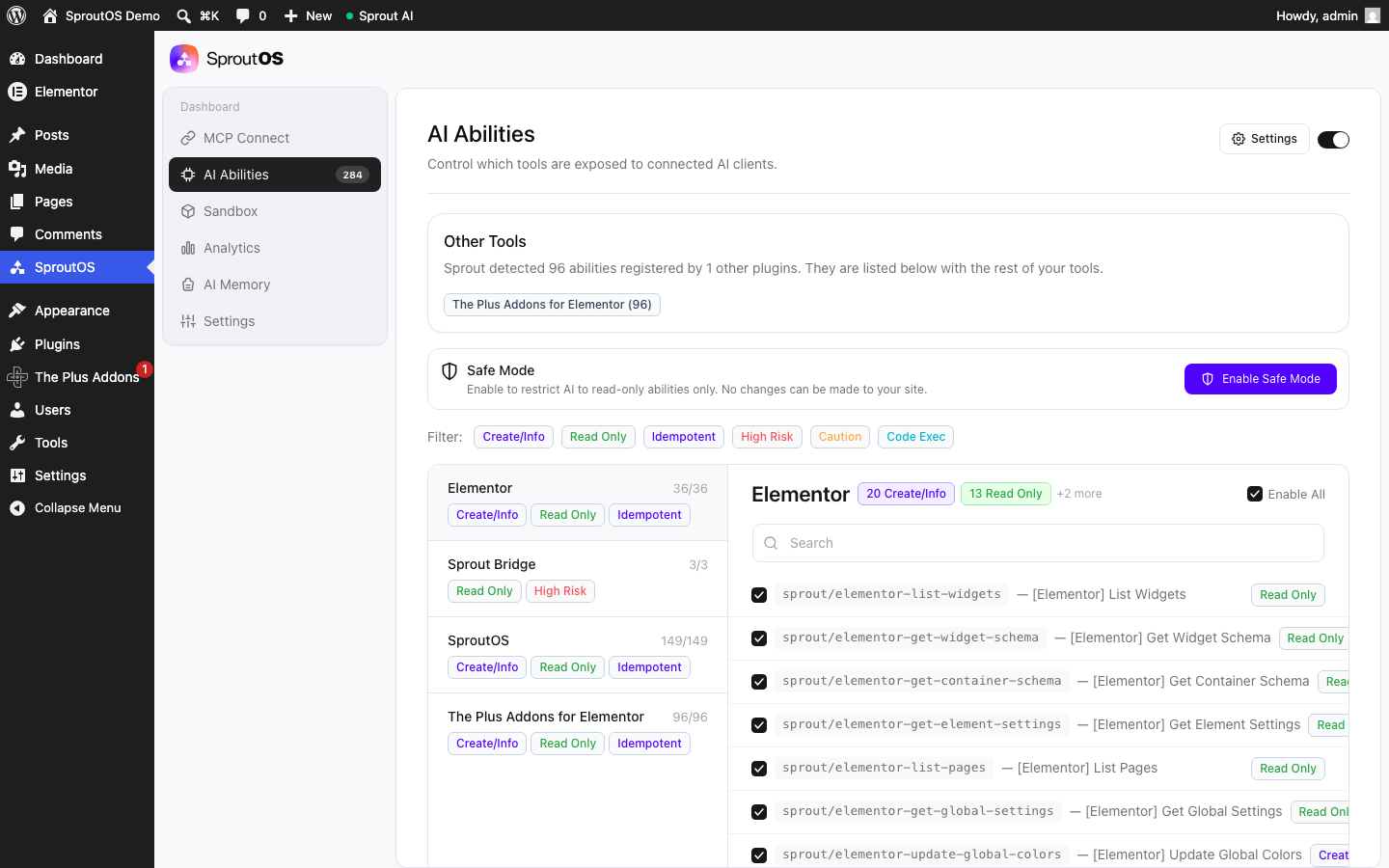
Three numbers from that screen worth holding in your head as we go into the workflows below:
- 36 Elementor abilities: list pages, get widget schemas, get container schemas, get element settings, update global colors, list templates, list global widgets, get content tree, and so on. This is how Claude reads and modifies Elementor structures.
- 30 Widget abilities: add-accordion, add-button, add-carousel, add-cta, add-form, add-gallery, add-heading, add-pricing-table, add-slider, add-tabs, add-testimonial. Each is a typed insert with schema validation.
- 96 TPAE abilities: deep operations for The Plus Addons widgets that the generic MCP servers cannot reach because they do not know what the widgets are. POSIMYTH built both plugins, so the integration goes further.
Wire Claude to the stack (90 seconds)
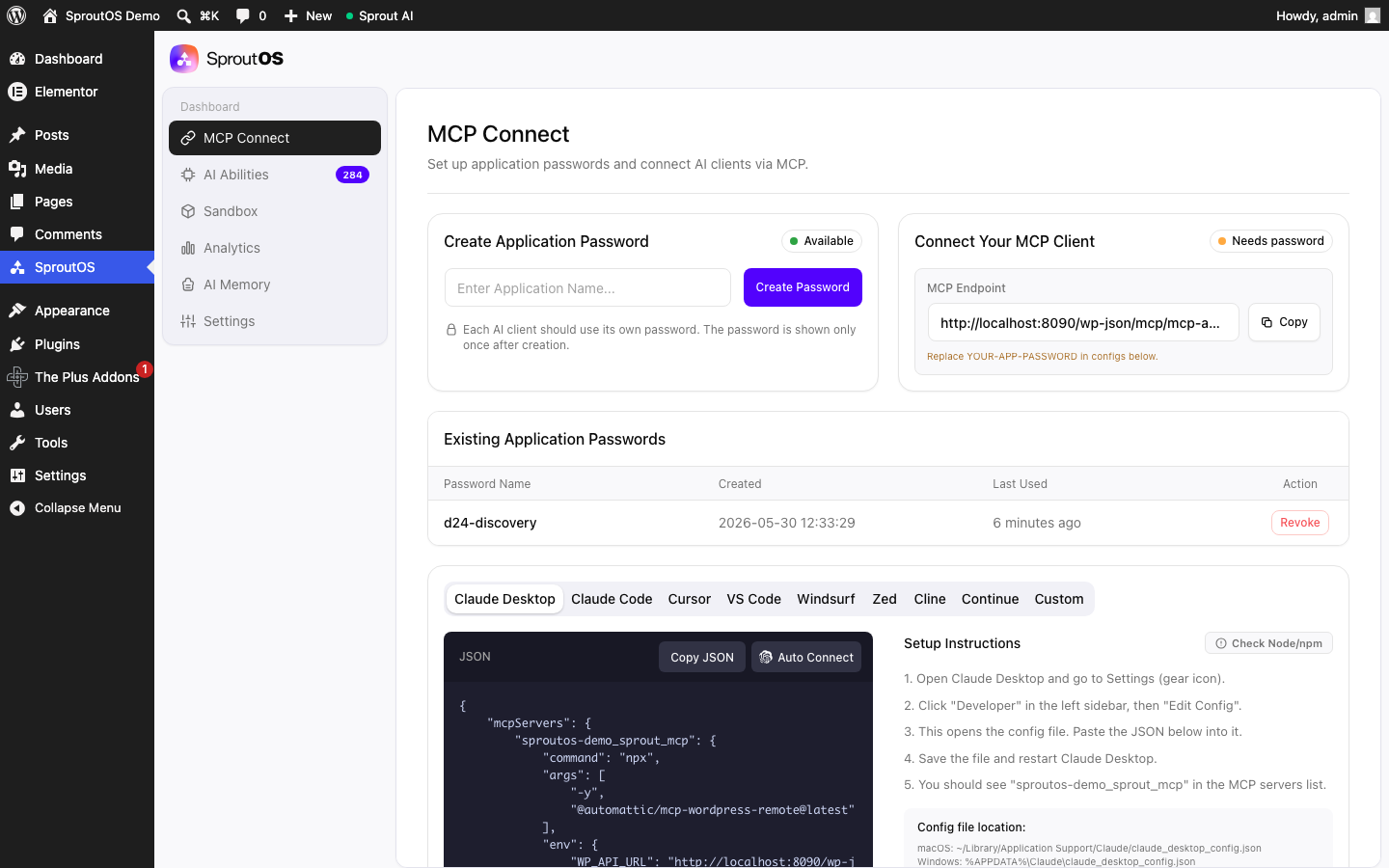
The full Claude-to-WordPress install is covered in the 5-minute SproutOS install guide. For Elementor specifically, three things matter:
- Application password per AI client: do not reuse the Claude Desktop password for Cursor or VS Code. Name them after the machine (
claude-desktop-sagar-mbp,cursor-team-mac) so you can revoke one without breaking the others. - Pick the client tab in MCP Connect, copy the JSON. Each client has slightly different file paths (
~/Library/Application Support/Claude/claude_desktop_config.jsonfor Claude Desktop,~/.cursor/mcp.jsonfor Cursor). The SproutOS UI tells you where to paste. - Verify with a bridge call before you write any Elementor. From the same terminal Claude Desktop uses, run the bridge once and call
sprout-bridge-discover-tools. If the response includesability_count: 265or higher, you are good.
If the connection fails, the troubleshooting post in this series covers the six most common reasons with verbatim fixes: Claude can’t connect to my WordPress site: 6 reasons and the fix.
Workflow 1: bulk widget edits across a portfolio
The agency time-save that pays back the install in week one. Client launches a brand refresh, you have 50 product pages with the same CTA button on each, and the CTA needs new copy and a new color across all 50.
The prompt:
List every Elementor page on this site. For pages in the “Products” category, find every Button widget where the text contains “Get a quote” and the background color is #2255FF. Update the text to “Talk to sales” and the background color to #FF3366. Show me a diff per page before applying. Skip pages where the button does not match the pattern.
What Claude does under the hood:
- Calls
sprout/elementor-list-pagesto enumerate Elementor pages on the site. - For each page, calls
sprout/elementor-get-content-treeto walk the widget tree and find Button widgets matching the criteria. - Builds a per-page diff in your chat, listing exactly which widgets would change.
- You approve. Claude calls
sprout/elementor-update-element-settingsfor each match.
The bridge call that backs step 1 looks like this when you run it from your terminal directly, output verbatim:
$ WP_API_URL="https://your-site.com/wp-json/mcp/mcp-adapter-default-server" \
  WP_API_USERNAME="admin" \
  WP_API_PASSWORD="YOUR-APP-PASSWORD" \
  npx -y @automattic/mcp-wordpress-remote@latest

# After initialise + tools/call sprout-bridge-dispatch-tool with sprout/elementor-list-pages:
{
  "ok": true,
  "bridge": "sprout_mcp_bridge_v2",
  "request_id": "db6f24bf-f449-4c93-8c69-3cef53f470ad",
  "ability": "sprout/elementor-list-pages",
  "started_at_gmt": "2026-05-30T12:42:40+00:00",
  "duration_ms": 4,
  "telemetry": { "payload_key_count": 4, "payload_keys": ["per_page", "page", "post_type", "status"] },
  "result": { "total": 0, "page": 1, "per_page": 20, "pages": [] }
}
Real handshake, real bridge contract version, real telemetry. On a site with 50 actual Elementor pages, the pages array fills with post IDs, titles, and edit URLs Claude uses to scope the next call. On a fresh Docker with no Elementor-edited content, you get the response above (total 0). That is how you verify the bridge is healthy before pointing it at production.
Run time for a 50-page portfolio: 4 minutes wall-clock from prompt to approved diff to applied changes. Compare to the equivalent in the Elementor editor: open each page, find the Button, edit copy, edit color, save, exit, next page. Around 90 minutes if you do not lose focus.
Workflow 2: design system audit with automated fixes
Once you have built a design system for a client, the next pain is enforcing it. A junior dev adds a button with the wrong padding. A guest writer uses heading color #333 instead of the design system’s brand black. Three months in, the site drifts. This workflow gives Claude a brief and asks it to scan + fix.
The prompt:
Use sprout/elementor-list-widgets to enumerate every widget type registered on this site. Then for every page in the “Blog” and “Resources” categories, pull the widget tree and flag any Heading widget where the color is not one of [#000000, #14213D, #FFFFFF] or any Button widget where the border-radius is not 8px or 0px. Output a CSV table of [page_id, page_title, widget_type, current_value, expected_value]. Do not modify anything yet.
What Claude does:
- Calls
sprout/elementor-list-widgetsto know what widget types it should expect. - For each in-scope page, calls
sprout/elementor-get-content-treeto walk widgets. - Compares each Heading and Button widget’s settings against the design system rules in your prompt.
- Returns the audit as a structured table directly in your chat.
The sprout/elementor-list-widgets call from this morning’s run, narrowed to the “basic” Elementor category, returned ten widgets verbatim:
{
  "ok": true,
  "bridge": "sprout_mcp_bridge_v2",
  "ability": "sprout/elementor-list-widgets",
  "duration_ms": 114,
  "telemetry": { "payload_key_count": 1, "payload_keys": ["category"] },
  "result": {
    "widgets": [
      { "name": "inner-section", "title": "Inner Section", "categories": ["basic"], "is_pro": false },
      { "name": "heading",       "title": "Heading",       "categories": ["basic"], "is_pro": false },
      { "name": "image",         "title": "Image",         "categories": ["basic"], "is_pro": false },
      { "name": "text-editor",   "title": "Text Editor",   "categories": ["basic"], "is_pro": false },
      { "name": "video",         "title": "Video",         "categories": ["basic"], "is_pro": false },
      { "name": "button",        "title": "Button",        "categories": ["basic"], "is_pro": false },
      { "name": "divider",       "title": "Divider",       "categories": ["basic"], "is_pro": false },
      { "name": "spacer",        "title": "Spacer",        "categories": ["basic"], "is_pro": false },
      { "name": "google_maps",   "title": "Google Maps",   "categories": ["basic"], "is_pro": false },
      { "name": "icon",          "title": "Icon",          "categories": ["basic"], "is_pro": false }
    ]
  }
}
114ms response. From this, Claude knows the widget surface to audit. Adding category: "pro-elements" returns the Pro widgets, and the TPAE-specific widgets surface through the 96 TPAE abilities visible in the AI Abilities tab earlier.
Run time for a design system audit across 200 pages: 7-9 minutes. The fix step (let Claude apply the changes you approve) adds another 10-15 minutes depending on how many violations the audit surfaces. Manual: a full Saturday of an agency dev’s time, and the dev would miss things.
Workflow 3: section generation from a structured brief
The build-phase workflow. Client sends you a brief: “Build a pricing section with three tiers, monthly and annual toggle, the middle one featured.” In the Elementor editor that is 45 minutes of careful work. With SproutOS abilities, Claude builds the section structurally and you tweak the visuals.
The prompt:
On page ID 142, append a new Elementor section with three columns. In each column, add an Icon Box widget with a TPAE Pricing Table widget below it. Use the brand colors from this site’s global palette (call sprout/elementor-get-global-settings first). Mark the middle column as featured with a 4px brand-color border. Use the pricing data from this JSON: [{“tier”:”Starter”,”price”:29,”features”:[“…”]}, …]. Do not preview, just build the structure and show me the new section_id when done.
What Claude does:
- Calls
sprout/elementor-get-global-settingsto pull the brand color palette. - Calls
sprout/add-sectionon page 142 with the column layout in the input schema. - For each column, calls
sprout/add-icon-boxandsprout/add-pricing-tablewith the structured data from your brief. - Returns the new section ID so you can open Elementor on that page and refine visuals.
The 30 named Widget abilities in SproutOS (add-accordion, add-alert, add-button, add-carousel, add-counter, add-cta, add-divider, add-form, add-gallery, add-heading, add-html, add-icon, add-icon-box, add-icon-list, add-image, add-image-box, add-map, add-menu, add-pricing-table, add-progress-bar, add-search, add-section, add-sidebar, add-slider, add-social-icons, add-spacer, add-tabs, add-testimonial, add-text, add-toggle) cover most agency build needs out of the box. TPAE’s 96 additional abilities cover the more specific widgets POSIMYTH has built over the years.
Run time for a 3-tier pricing section: 4 minutes structural build + 5-10 minutes of visual refinement in the Elementor editor. Total under 15 minutes versus 45-60 in pure-Elementor work.
Safety before you point Claude at a client’s live Elementor site
Three safety surfaces matter for Elementor work specifically. The full SproutOS safety story is in the install guide; this is the Elementor-specific reading:
- Safe Mode toggle (top-right of AI Abilities tab). Flip it on for the first 10 sessions on any client site. Every connected AI client is forced to read-only abilities only. Claude can audit, list, and report; it cannot insert, modify, or delete. Workflows 1 and 3 above are blocked under Safe Mode; workflow 2 (the audit) is the right first workflow to try because it works under read-only.
- Per-ability risk labels. Every ability is tagged Read Only, Idempotent, Create/Info, Caution, High Risk, or Code Exec. For Elementor specifically, the destructive Update Global Colors ability shows up as High Risk in the UI; the read-only List Widgets shows as Read Only. Disable individual abilities you do not want exposed.
- Post protection via
sprout/protect-post. If there is a critical Elementor page on a client site (the homepage, the checkout, a high-traffic landing page), callsprout/protect-postwith that post ID. Any subsequent ability that tries to write to that post fails with a clear error message. You can review and unprotect explicitly when ready.
FAQ
Does this work without TPAE?
Yes. SproutOS’s 36 Elementor abilities and 30 Widget abilities (84 total Elementor-relevant) work on any Elementor install. TPAE adds 96 more abilities specifically for its widget set; if you have TPAE installed, those abilities surface automatically, but the workflows above work on vanilla Elementor too.
Does this work with Elementor Pro?
Yes. The SproutOS Elementor abilities call into Elementor’s internal API, which is the same on free and Pro. Pro-only widgets (Forms, Posts, Loop Builder, etc.) show up in the sprout/elementor-list-widgets output with is_pro: true. Claude can read and modify them the same way.
How does this compare to using the Elementor + Cursor combination directly?
Cursor + SproutOS gives you the same Elementor abilities inside Cursor’s agent panel, with the file you are editing as part of the context. The full Cursor walkthrough with three dev-specific workflows is here: Connect Cursor to WordPress via MCP.
What about Elementor’s official AI feature?
Elementor’s built-in AI is for generating content inside the editor as you build. SproutOS is for an AI agent driving the whole site externally via MCP — different problem. You can use both. They do not conflict.
What if I am running Bricks instead of Elementor?
SproutOS ships abilities for Bricks too (the Builder category abilities cross builders). The Elementor-specific abilities in this post do not apply, but the equivalent Bricks abilities do.
Where to go next
If you have not installed SproutOS yet, the install takes under 5 minutes for the plugin side plus 2 minutes for the Claude Desktop config:
The full pillar guide walks through the install end-to-end with screenshots: Claude + WordPress + MCP: how to actually connect them.
For picking the right MCP plugin for your agency shape, the honest comparison anchor is here: Every WordPress MCP plugin compared (May 2026).
How we tested (methodology)
Written on May 30, 2026 from a freshly wiped Docker WordPress 7.0 container (wordpress:latest + mariadb:lts, port 8090). Four plugins active for the test: WordPress Abilities API 0.5.0, SproutOS 0.1.1, Elementor 4.1.1, The Plus Addons for Elementor (free edition) 6.4.16. Screenshots in this post are from that exact install, captured via Playwright headless Chromium at 1440×900.
Ability counts confirmed via the SproutOS bridge call sprout-bridge-discover-tools from a fresh npx @automattic/mcp-wordpress-remote session: 265 abilities total, 36 in the Elementor group, 30 in the Widget group, 18 in the Builder group, plus 96 abilities registered by The Plus Addons for Elementor. The verbatim JSON outputs from sprout/elementor-list-pages and sprout/elementor-list-widgets in the workflow sections are the actual bridge responses from this morning’s run.
I (Sagar Patel) build SproutOS at POSIMYTH. POSIMYTH also builds The Plus Addons for Elementor. The deeper Elementor + TPAE integrations in this post reflect that POSIMYTH ships both sides of the bridge.